W3cubDocs
/Kotlin 1.9Create a Spring Boot project with Kotlin
The first part of the tutorial shows you how to create a Spring Boot project in IntelliJ IDEA using Project Wizard.
Before you start
Download and install the latest version of IntelliJ IDEA Ultimate Edition.
Create a Spring Boot project
Create a new Spring Boot project with Kotlin by using the Project Wizard in IntelliJ IDEA Ultimate Edition:
In IntelliJ IDEA, select File | New | Project.
In the panel on the left, select New Project | Spring Initializr.
-
Specify the following fields and options in the Project Wizard window:
Name: demo
Language: Kotlin
Build system: Gradle
-
JDK: Java 17 JDK
Java: 17
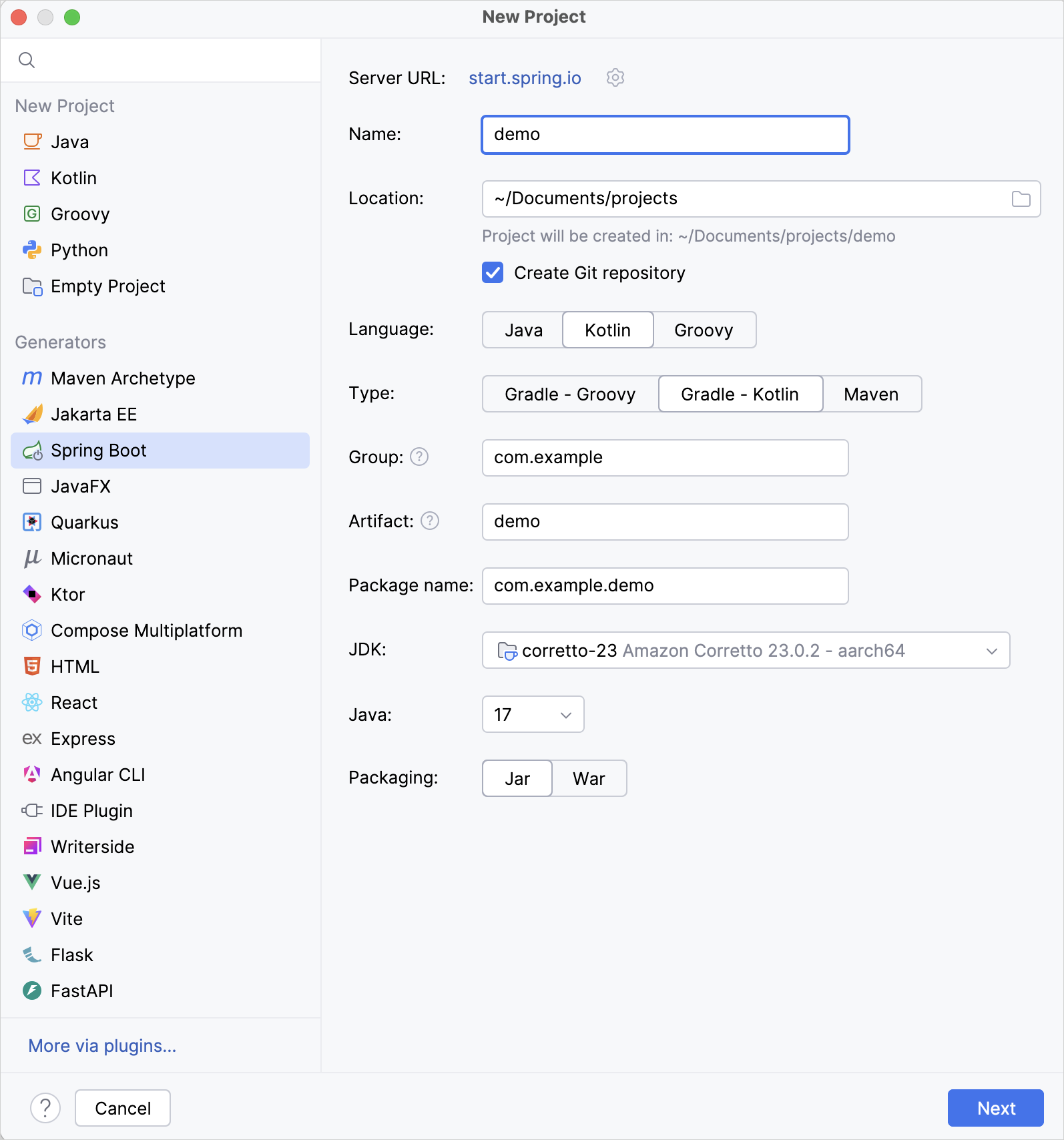
Ensure that you have specified all the fields and click Next.
-
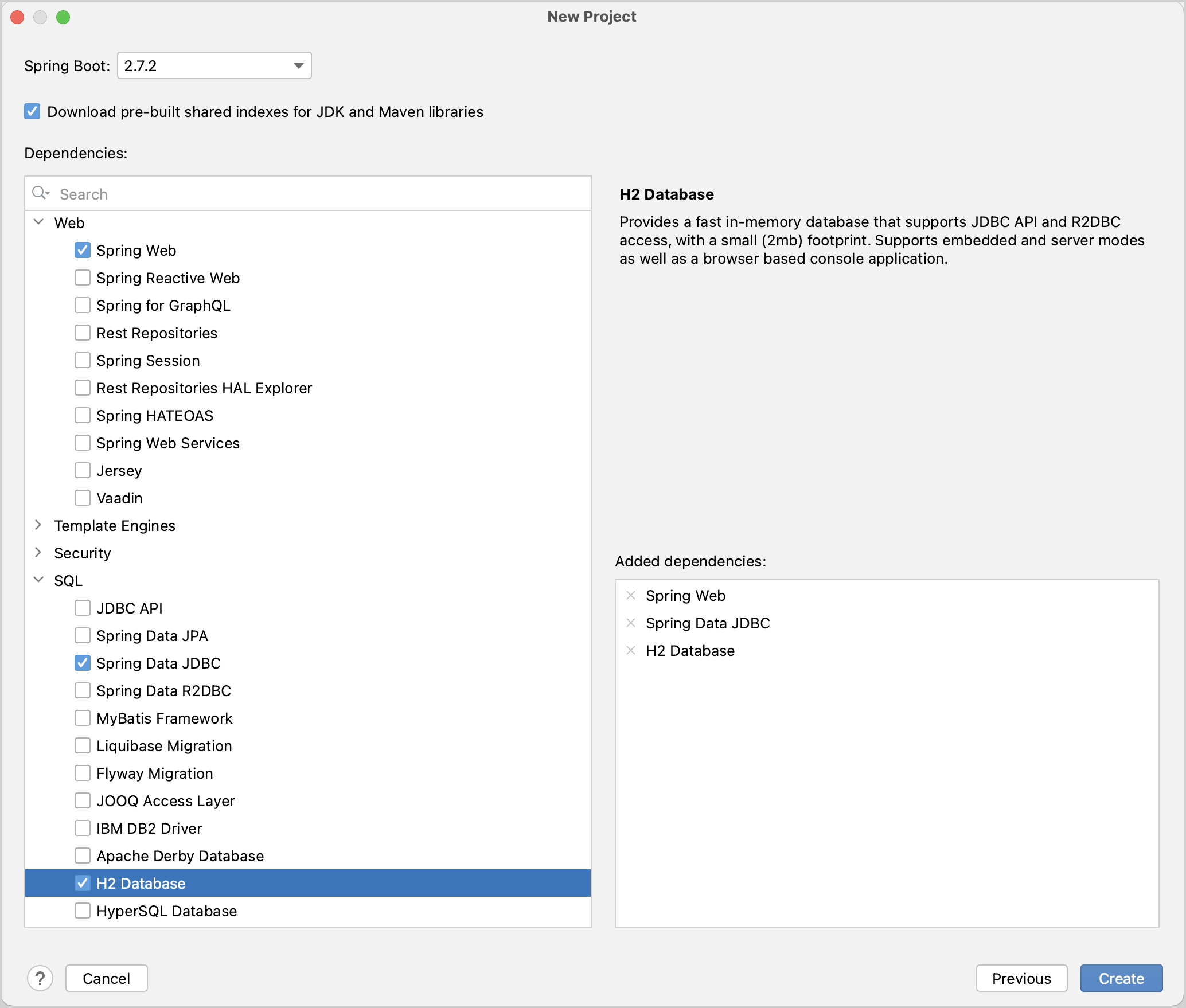
Select the following dependencies that will be required for the tutorial:
Web / Spring Web
SQL / Spring Data JDBC
SQL / H2 Database
-
Click Create to generate and set up the project.
The IDE will generate and open the new project. It may take some time to download and import the project dependencies.
-
After this, you can observe the following structure in the Project view:

The generated Gradle project corresponds to the Maven's standard directory layout:
There are packages and classes under the
main/kotlinfolder that belong to the application.The entry point to the application is the
main()method of theDemoApplication.ktfile.
Explore the project Gradle build file
Open the build.gradle.kts file: it is the Gradle Kotlin build script, which contains a list of the dependencies required for the application.
The Gradle file is standard for Spring Boot, but it also contains necessary Kotlin dependencies, including the kotlin-spring Gradle plugin – kotlin("plugin.spring").
Here is the full script with the explanation of all parts and dependencies:
import org.jetbrains.kotlin.gradle.tasks.KotlinCompile // For `KotlinCompile` task below

plugins {
    id("org.springframework.boot") version "2.7.1"
    id("io.spring.dependency-management") version "1.0.11.RELEASE"
    kotlin("jvm") version "1.9.0" // The version of Kotlin to use
    kotlin("plugin.spring") version "1.9.0" // The Kotlin Spring plugin
}

group = "com.example"
version = "0.0.1-SNAPSHOT"
java.sourceCompatibility = JavaVersion.VERSION_17

repositories {
    mavenCentral()
}

dependencies {
    implementation("org.springframework.boot:spring-boot-starter-data-jdbc")
    implementation("org.springframework.boot:spring-boot-starter-web")
    implementation("com.fasterxml.jackson.module:jackson-module-kotlin") // Jackson extensions for Kotlin for working with JSON
    implementation("org.jetbrains.kotlin:kotlin-reflect") // Kotlin reflection library, required for working with Spring
    runtimeOnly("com.h2database:h2")
    testImplementation("org.springframework.boot:spring-boot-starter-test")
}

tasks.withType<KotlinCompile> { // Settings for `KotlinCompile` tasks
    kotlinOptions { // Kotlin compiler options
        freeCompilerArgs = listOf("-Xjsr305=strict") // `-Xjsr305=strict` enables the strict mode for JSR-305 annotations
        jvmTarget = "17" // This option specifies the target version of the generated JVM bytecode
    }
}

tasks.withType<Test> {
    useJUnitPlatform()
}
As you can see, there are a few Kotlin-related artifacts added to the Gradle build file:
-
In the
pluginsblock, there are two Kotlin artifacts:kotlin("jvm")– the plugin defines the version of Kotlin to be used in the projectkotlin("plugin.spring")– Kotlin Spring compiler plugin for adding theopenmodifier to Kotlin classes in order to make them compatible with Spring Framework features
-
In the
dependenciesblock, a few Kotlin-related modules listed:com.fasterxml.jackson.module:jackson-module-kotlin– the module adds support for serialization and deserialization of Kotlin classes and data classesorg.jetbrains.kotlin:kotlin-reflect– Kotlin reflection library
After the dependencies section, you can see the
KotlinCompiletask configuration block. This is where you can add extra arguments to the compiler to enable or disable various language features.
Explore the generated Spring Boot application
Open the DemoApplication.kt file:
package demo

import org.springframework.boot.autoconfigure.SpringBootApplication
import org.springframework.boot.runApplication

@SpringBootApplication
class DemoApplication

fun main(args: Array<String>) {
    runApplication<DemoApplication>(*args)
}
- Declaring classes – class DemoApplication
-
Right after package declaration and import statements you can see the first class declaration,
class DemoApplication.In Kotlin, if a class doesn't include any members (properties or functions), you can omit the class body (
{}) for good. - @SpringBootApplication annotation
@SpringBootApplication annotationis a convenience annotation in a Spring Boot application. It enables Spring Boot's auto-configuration, component scan, and be able to define an extra configuration on their "application class".- Program entry point – main()
-
The
main()function is the entry point to the application.It is declared as a top-level function outside the
DemoApplicationclass. Themain()function invokes the Spring'srunApplication(*args)function to start the application with the Spring Framework. - Variable arguments – args: Array<String>
If you check the declaration of the
runApplication()function, you will see that the parameter of the function is marked withvarargmodifier:vararg args: String. This means that you can pass a variable number of String arguments to the function.- The spread operator – (*args)
The
argsis a parameter to themain()function declared as an array of Strings. Since there is an array of strings, and you want to pass its content to the function, use the spread operator (prefix the array with a star sign*).
Create a controller
The application is ready to run, but let's update its logic first.
In the Spring application, a controller is used to handle the web requests. In the DemoApplication.kt file, create the MessageController class as follows:
@RestController
class MessageController {
    @GetMapping("/")
    fun index(@RequestParam("name") name: String) = "Hello, $name!"
}
- @RestController annotation
-
You need to tell Spring that
MessageControlleris a REST Controller, so you should mark it with the@RestControllerannotation.This annotation means this class will be picked up by the component scan because it's in the same package as our
DemoApplicationclass. - @GetMapping annotation
-
@GetMappingmarks the functions of the REST controller that implement the endpoints corresponding to HTTP GET calls:@GetMapping("/") fun index(@RequestParam("name") name: String) = "Hello, $name!" - @RequestParam annotation
-
The function parameter
nameis marked with@RequestParamannotation. This annotation indicates that a method parameter should be bound to a web request parameter.Hence, if you access the application at the root and supply a request parameter called "name", like
/?name=<your-value>, the parameter value will be used as an argument for invoking theindex()function. - Single-expression functions – index()
-
Since the
index()function contains only one statement you can declare it as a single-expression function.This means the curly braces can be omitted and the body is specified after the equals sign
=. - Type inference for function return types
-
The
index()function does not declare the return type explicitly. Instead, the compiler infers the return type by looking at the result of the statement on the right-hand side from the equals sign=.The type of
Hello, $name!expression isString, hence the return type of the function is alsoString. - String templates – $name
-
Hello, $name!expression is called a String template in Kotlin.String templates are String literals that contain embedded expressions.
This is a convenient replacement for String concatenation operations.
Here is a complete code of the DemoApplication.kt:
Run the application
The Spring application is now ready to run:
-
Click the green Run icon in the gutter beside the
main()method: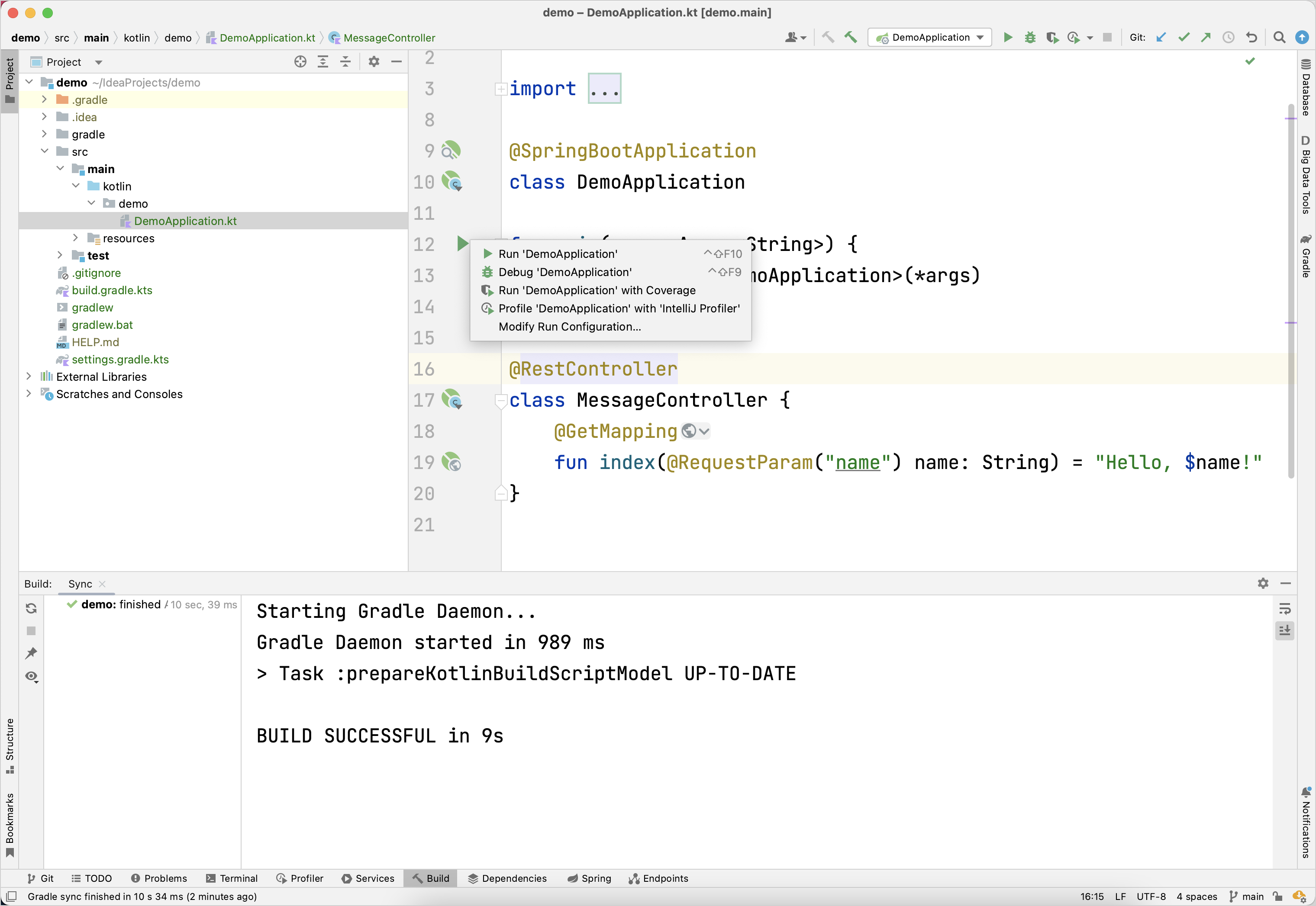
This starts the local server on your computer.
-
Once the application starts, open the following URL:
http://localhost:8080?name=John
You should see "Hello, John!" printed as a response:

Next step
In the next part of the tutorial you'll learn about Kotlin data classes and how you can use them in your application.
Get the Kotlin language map
Get your personal language map to help you navigate Kotlin features and track your progress in studying the language. We will also send you language tips and useful materials on using Kotlin with Spring.

© 2010–2023 JetBrains s.r.o. and Kotlin Programming Language contributors
Licensed under the Apache License, Version 2.0.
https://kotlinlang.org/docs/jvm-create-project-with-spring-boot.html