W3cubDocs
/npmRecovering your 2FA-enabled account
When you have two-factor access enabled on your account, and you lose access to your 2FA device, you may be able to recover your account using the following methods.
Misplaced second factor device
If you have misplaced the device that provided second-factor authentication, you can use the recovery codes generated when you enabled 2FA to access your account.
Using recovery code on the web
-
Locate the recovery codes generated that you have saved.
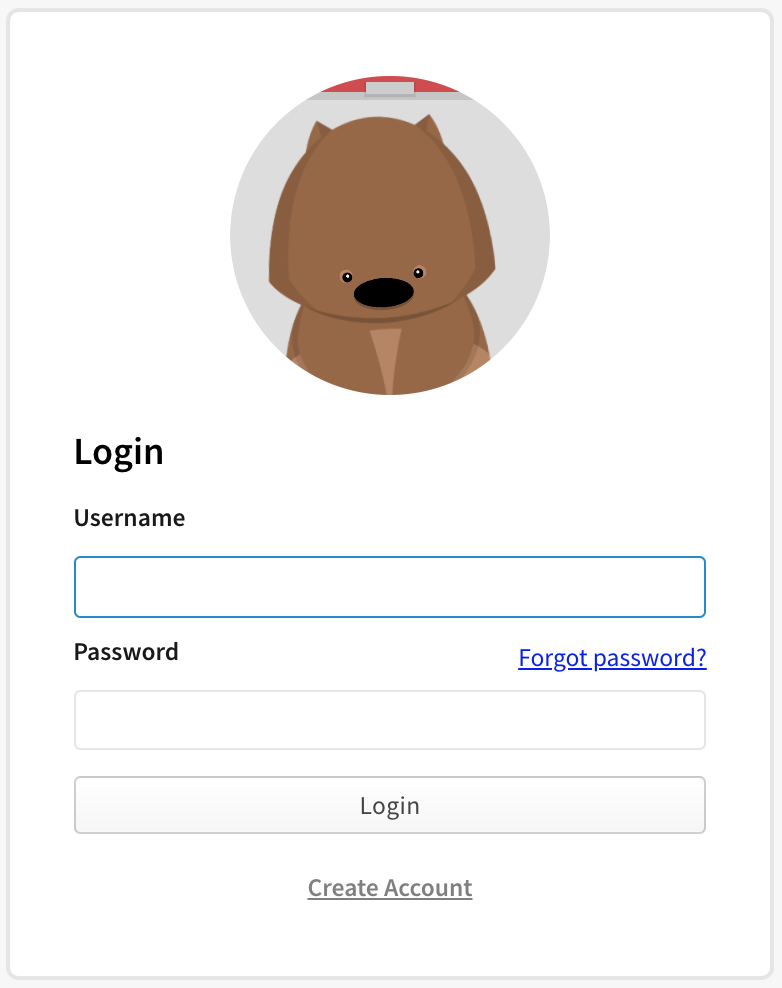
- On the npm "Sign In" page, enter your account details and click Sign In.
- On the "Two-Factor Authentication" page, click Use a recovery code or request a reset.
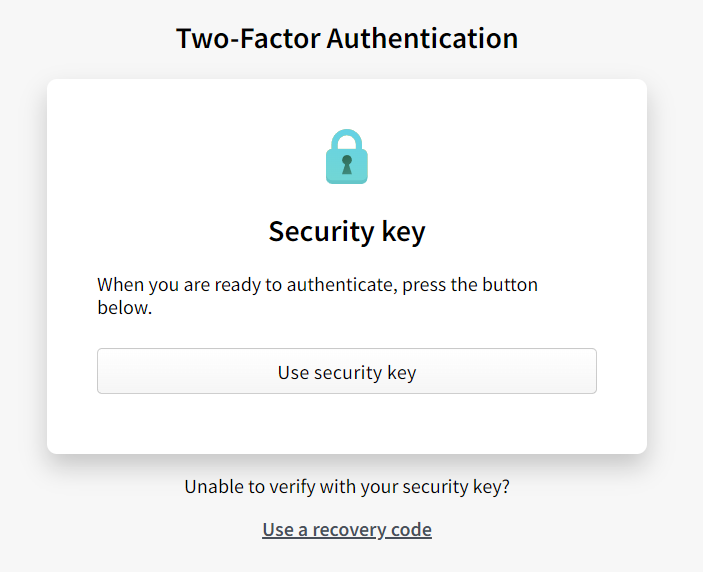
Note: If you have configured to use TOTP, you will see an TOTP prompt instead
-
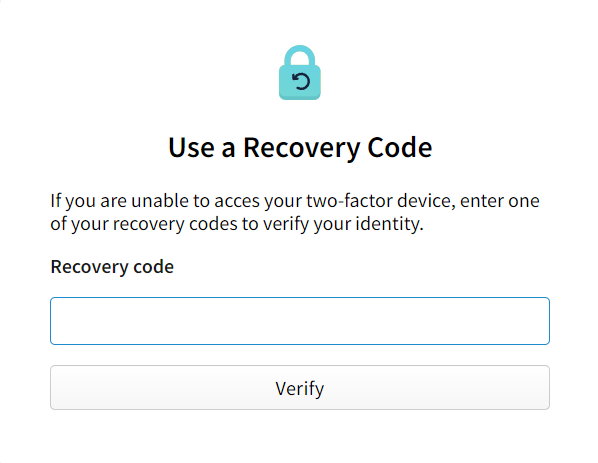
Enter an unused recovery code in the "Use a Recovery Code" prompt.
-
You are now logged into npm.
-
(Optional) To disable 2FA, see "Disabling 2FA".
Using recovery code from the command line
-
Locate the recovery codes generated when you enabled 2FA on your account.
-
If you are logged out on the command line, log in using
npm logincommand with your username and npm password. -
Enter an unused recovery code when you see this prompt:
-
Once you are logged in, use the below and enter your npm password if prompted.
npm profile disable-2fa -
Enter another unused recovery code when you see this prompt:
-
npm will confirm that two-factor authentication has been disabled.
-
Follow the steps outlined in "Configuring two-factor authentication" to re-enable 2FA and generate new recovery codes.
Note: Using the recovery codes to re-enable 2FA may create a new authenticator account with the same npm account name.
If you are using a time-based one-time password (TOTP) mobile app and want to delete the old authenticator account, follow the steps for the authenticator.
Viewing and regenerating recovery code
Note: Once you regenerate a set of code, all previous recovery codes become invalid. Each code can be used only once.
- On the npm "Sign In" page, enter your account details and click Sign In.
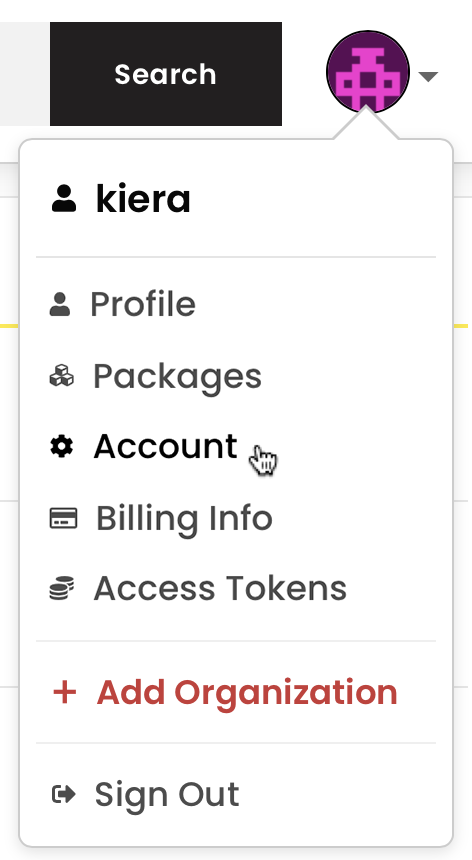
- In the upper right corner of the page, click your profile picture, then click Account.
-
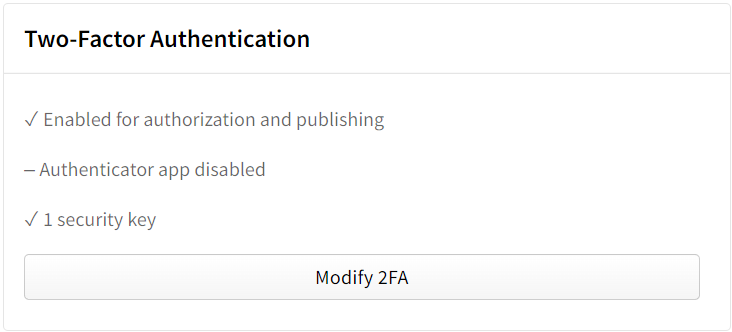
On the account settings page, under "Two-Factor Authentication", click Modify 2FA.
-
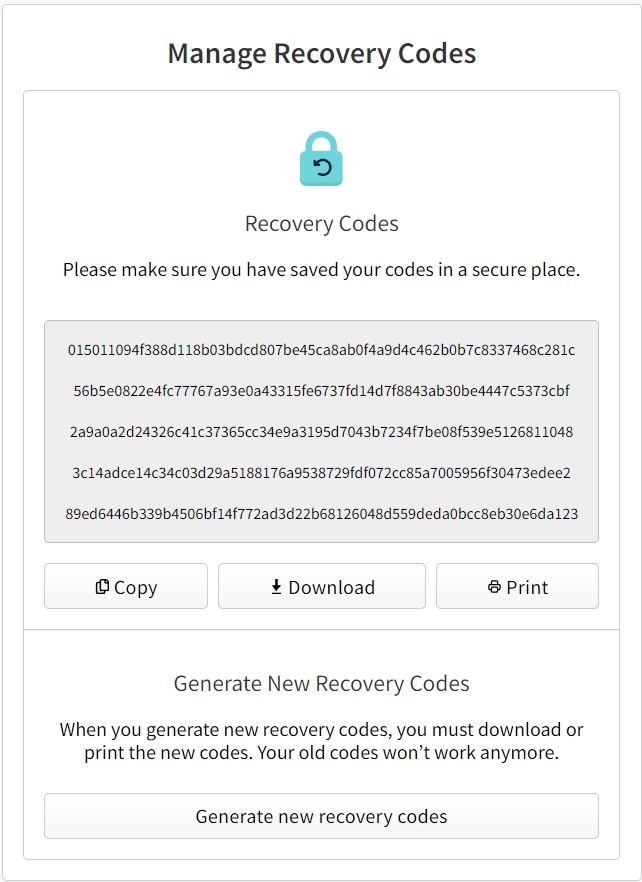
Click "Manage Recovery Codes" to view your recovery codes.
-
Click "Regenerate Code" to generate a new set of codes.
Misplaced recovery codes
If you have misplaced both your 2FA device and your recovery codes, you can contact our support team to attempt to recover your account. Provide as much information as possible to help us expedite the request faster.
- On the npm "Sign In" page, enter your account details and click Sign In.
- On the "Two-Factor Authentication" page, click Use a recovery code or request a reset.
-
Under the "Use a Recovery Code" form, click Try recovering your account.
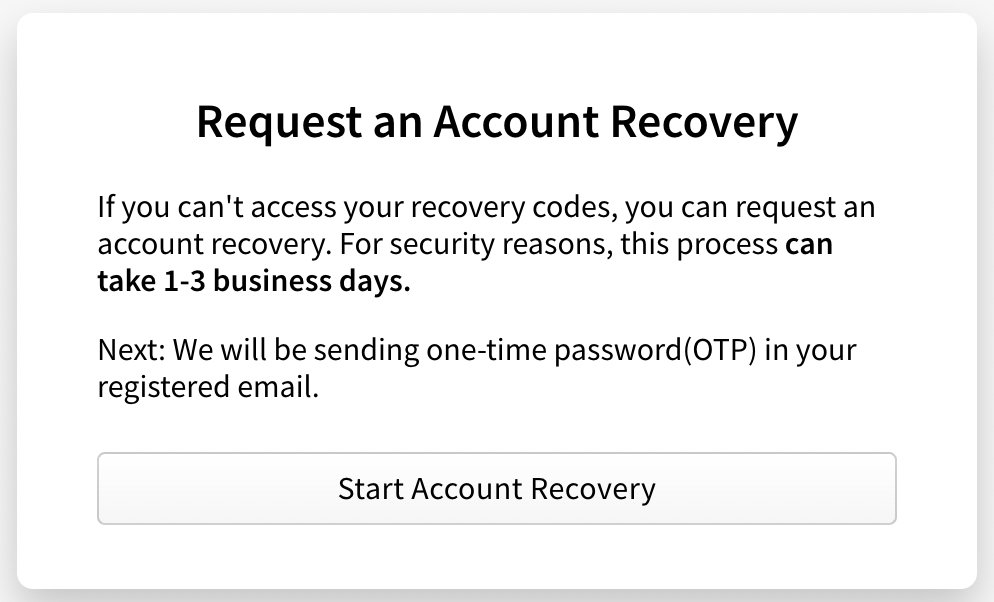
- On the "Request an Account Recovery" page, click Start Account Recovery.
-
If you have access to your registered email, enter the one-time password sent to your email in the One-Time Password field, then click Verify Email Address. If you do not have access to your registered email, select Skip email verification at the bottom of the form.
- In the "Open a Support Ticket" form, enter the following information:
- In the Email field, enter an email address where our support team can contact you.
- In the How can we help? section, select Reset my two-factor authentication (2FA).
- If you need help with anything else, in the How can we help? section, select Other and enter more information in the Additional Details field.
- If you have previously linked a GitHub account to your npm account, select Connect to GitHub. This will help our support team verify your account.
- If you have previously linked a Twitter account to your npm account, select Connect to Twitter. This will help our support team verify your account.
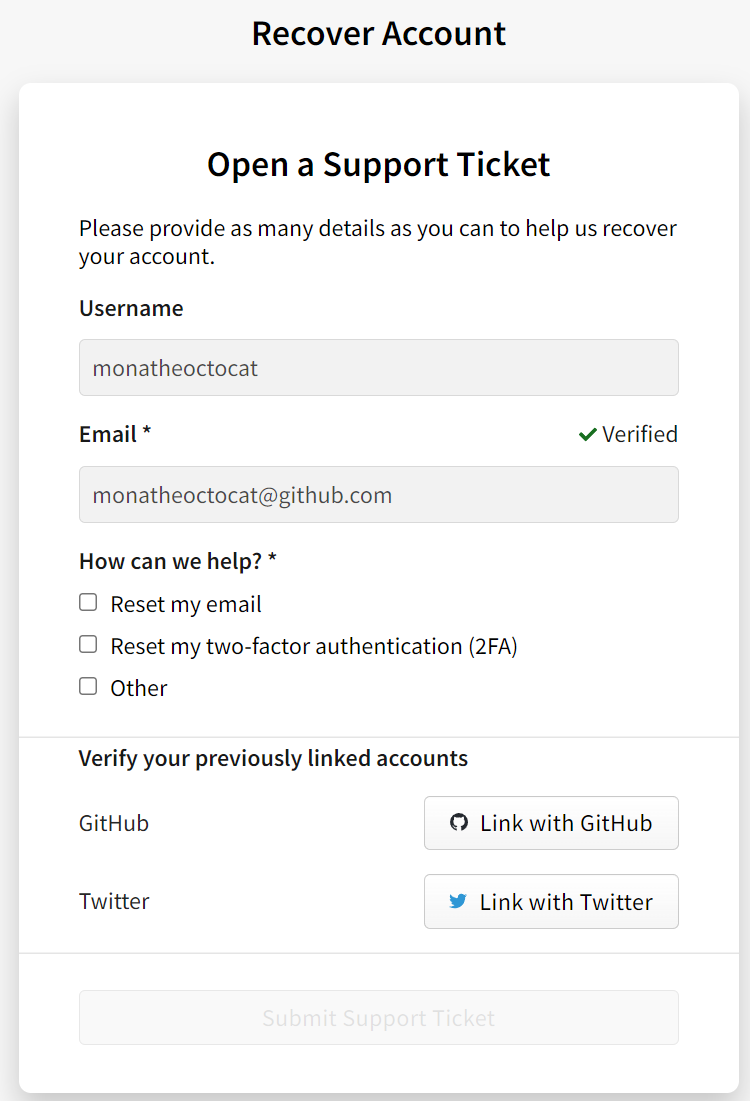
- At the bottom of the form, click Submit Support Ticket.
© npm, Inc. and Contributors
Licensed under the npm License.
npm is a trademark of npm, Inc.
https://docs.npmjs.com/recovering-your-2fa-enabled-account